Thursday, December 20, 2018

Measuring Oracy with...Google Forms!

This year my school is really trying to work on oracy - encouraging students to participate orally through multiple turn-taking.  We as teachers are doing a lot to plan to get 100% of our students participating in discourse.  What we're doing to track our progress and monitor how students are participating is by measuring student participation.

Measuring student talk?  What?  If you haven't done this before, you're probably wondering what this looks like.  As an example, in a circle discussion, you might draw a circle on a piece of paper and label the circle with where students are sitting.  Then as the discussion occurs, you can note what is happening in the discussion: who participates, how they participate (add on, agree, disagree, etc.), and if students are participating in a non-verbal way such as hand signals.  It might look like this:
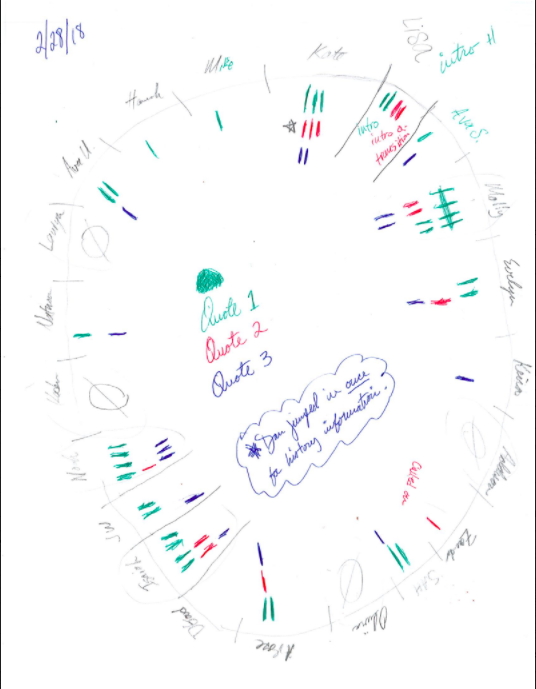


This is great.  You can easily see who participated a LOT and who did not participate at all.

This was presented to us at a PD opportunity, and I immediately thought: GOOGLE FORM!

I am terrible with paper, and every day the places where the kids sit changes.  With a Google Form, I could just list all of my students and possible ways that students could participate in a discussion.


This is AUGMENTATION!  How?

  • I can more easily track data
  • I can view trends
  • I can aggregate data more easily based on: subject and language of instruction!

Since I teach in a dual language classroom, I want to see who is participating more in English vs. Spanish.  I can also check to see who may feel more comfortable participating in literacy or numeracy, small group or whole group.

The best part?  I have told my students that I am tracking their participation using this form.  I show it to them.  They WANT to see how they participated.  I have students whose job is to run my discussions, and about halfway through our discussion time, I show them who has not participated yet and their job is to find a way to get those students involved.

I showed this to the staff at my school and we now have teachers in grades as low as Kindergarten using this to track the quantity and quality of their students' participation in oracy activities.

I have only used this so far in whole group discussions, but I am now starting to use it in small group discussions.  Some students just don't feel comfortable talking in front of a whole group!  But this is an awesome tool that you can try to use to check in and really see just how much your students' participation in discussions grows and changes over time.

Monday, December 17, 2018

Your Voice is My Favorite Sound

Although my professor Dr. Amy Chivington taught me many things in my time at Otterbein College (now University) in Westerville, OH, one piece of advice has stuck with me all these years later:

Teachers are the best thieves.

Yes---it sounds so wrong, but she had it so right. Why reinvent the wheel? Why not learn from each other?

Last year, it was my goal to stop just being the "thief" who took from others....even though I still do that ALL THE TIME...but also contribute my own teacher voice out into the world. I started small by creating a professional account on both Twitter and Instagram. I shared small ideas and projects I was working on in my own room.  I also responded to another music educator who was looking for teachers to write short articles regarding music and technology. Very quickly these two small efforts connected me with other educators, companies and opportunities to continue sharing my voice.


1. You are amazing.


You can do it too! 

It might not always feel that way, but you rock your classroom on a daily basis. Your classroom is something to celebrate and share with others.

2. People are listening.

Educators can feel so alone but your tribe is out there. Sharing your story allows you to find other educators who can relate, help and even push you to continue to better your own craft.

3. Who doesn't like swag?

So many education and technology companies are responsive on social media. They love to see how you are using their product, how it can be improved and always have cool swag to share.


A note from Brian Yearling, the Instructional Tech Coordinator lucky enough to work with Katie in her Journey to Modification:
Katie has shared her voice in many places over the past year. She accomplished her goal of sharing in big ways. You can follow her on Twitter at @K8TMiller to connect with her in social media. Additionally, she has guest blogged on the Midnight Music blog on her use of Class Dojo and tips for managing one-to-one iPads.  She was also recently interviewed for the Midnight Music podcast on a project in GarageBand with book reviews that Katie did with teacher Jennifer Guckenberger.


Tuesday, December 4, 2018

Meet the teacher - Jillian Miller

I have been teaching in the district for eight years at Whittier and Lowell Elementary, mostly specializing in Mathematics.  When the district first rolled out 1:1 devices, I had 5 iPads to share with my whole class.  I would often find myself using the iPads for students to make simple videos, take photos of learners at work, and practice math fluency facts on some shiny new flashy app I discovered on Pinterest.  Since then, I have learned from my colleagues at WaukOne conferences, as well as some Google Educator professional development and have completely changed how I view and use technology in my classroom.  My favorite way to use technology? Break down walls.

 I have a passion for using technology to break down the walls in my classroom for many reasons.  First, there are so many people and resources bigger than us out there that I want them to be aware of.  My students have Skyped professional authors and illustrators as well as students from other states that have shined so much light on the world they live in.  Second, breaking down classroom walls have set a mindset of inquiry with my students.  When we did a Google Expedition of the phases of the moon, students were able to see a realistic view of the moon which prompted deeper thinking and questioning. Finally, I find students are extremely engaged.  My students have gone on virtual field trips to the San Diego Zoo and a live African safari and months later, still talk about it.  Even students who have behavior challenges are completely engaged in learning with virtual field trips!

I am very grateful for this model tech classroom coaching opportunity so I can continue to grow as an educator and discover more effective ways to break down my classroom walls!

Untethering

Untethering!

A journey of cutting the cord!

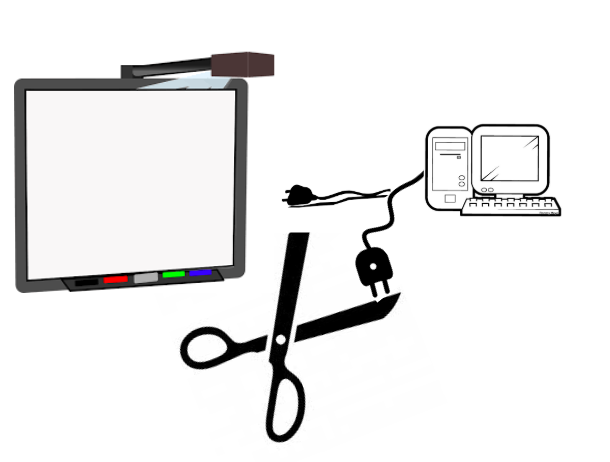
I had a recent triumph! I am finally untethered! I have recently taken the last steps to release myself from the cords that connect the desktop computer and the Smartboard. That hidden nest of tangled cords can have a subtle impact on teaching and learning. For years, these cords connected the desktop to the Smartboard. Connected the Smartboard to me. Connected me to the front of the room.  
Cutting the cord was made possible by the introduction of the new Smartboard TV into the room and willingness to let go of the familiar.


We have a new Smartboard TV in our classroom! I love it. My learners love it. Visitors love it.  This new board has great features! The board has its own built in “computer” with a browser, a digital whiteboard, built in mirroring, a remote file sharing feature and others. This board has allowed me to conquer the cords and become more mobile! I let go of the desktop, released the document camera and liberated myself to  move away from the Smartboard.

TRIUMPH!

This triumph was not immediate-it took time. We used the board for an entire year while learning the ins and outs and working out some of the kinks. I slowly replaced old functions with new ones and found workarounds with trial & error. Full use and untethering did not happen overnight.

Little by Little

I used the built in mirroring share feature while keeping the Apple TV plugged in and functional while getting used to the new built in share function.

I used the board’s browser to access Google Drive and all digital files while keeping the old desktop plugged in and available to use if needed. The desktop at its last classroom duty-it was used to play our Youtube study music playlist. The new board was not able to run the music in the background while another page was displaying.

I would suggest that others with an Apple TV and any type of interactive board give a try to cutting the cords. Take a couple of steps at a time. Reflect on the little successes along the way. Celebrate the moment you are able to become more mobile when displaying or teaching using your Smartboard. The journey, even if as lengthy as mine, is worth it!

Saturday, March 10, 2018

**Kid-safe and FREE media resources**

I was thrilled to be invited to participate in the Wisconsin Public Television's Education Innovation Summit on March 9, 2018. Although I had no idea what I was getting myself into, it really help with a problem I often have: finding quality, free media resources (that I don't fall in love with....and then they start to charge!) that I can easily get to students without more hassle.

I was blown away at the session by the media resources available at  https://wpt.pbslearningmedia.org/ because of all the kid-safe, FREE options for all subject areas. Seriously, go right now and search something! They have everything! You can even listen to a Recorder Mentor. I mean, who wouldn't want to listen to recorder music?? Not only can you share these media resources directly through Google Classroom, you can build out you own lesson plans with a series of media as well as questions.

Wisconsin Public Television also has a website at https://wimedialab.org/ with whole pages devoted to topics like:

Wisconsin Biographies

Young Performers Initiative

Wisconsin First Nations

Monday, February 12, 2018

Kaylee's Story

I am a First Grade teacher at Banting Elementary and I have been teaching for seven years. When I first began teaching at Banting our technology resources were that of a classroom set of 5 computers for the students to use. Nowadays, my students have been blessed by a personalized device and these devices have transformed the teaching and learning that is happening in our classrooms. It has increased the level of engagement in the classroom as well. 

Most of my technology experience in the classroom I've had to self-teach myself. Some lessons have benefited greatly through the use of a device and it's resources while others lessons have flopped. But like all teaching, you need to change and modify your practice and try, try again! 

I am thankful for the technology in our school district. It provides students and teachers with a different learning experience. It gives us an opportunity to learn new things that we normally wouldn't have access to. As teaching is ever evolving and getting better so are the resources we have with our technology tools and the learning experiences we can set up for our students. 

Thursday, January 11, 2018

LOVE that Apple Classroom!

LOVE that Apple Classroom


Apple Classroom is an app that I LOVE! It has become an important tool embedded in my classroom management and without it I could not function the same! Before Apple Classroom, if you wanted to be able to remotely manage what students were “on” while using their iPads,  there was Casper Focus.  For me, Casper Focus made a not so great first impression with “The Great Notability Takedown of 2015”. It wasn’t really that dramatic- but a mishap with Casper Focus caused Notability to be removed from my students’ iPads. Consequently, I was hesitant to use Casper Focus after that, so I was VERY excited when Apple Classroom arrived.


Why I LOVE Apple Classroom:

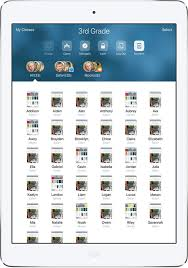
1. It takes about 10 minutes to set up Creating the class list for Apple Classroom

2. Its use is intuitive-it works like any other Apple product Overview of Apple Classroom

View snapshots of student iPad screens
in real time. See what all of your students
are doing on their iPads while working
with others students.
3. I can view all student screens at the same time and monitor while I facilitate a small group or work one-on-one. 

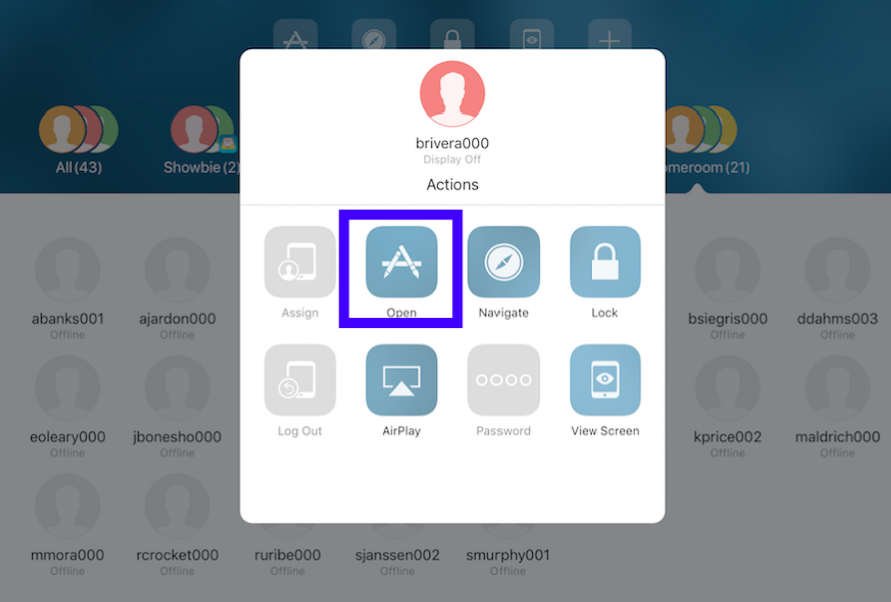
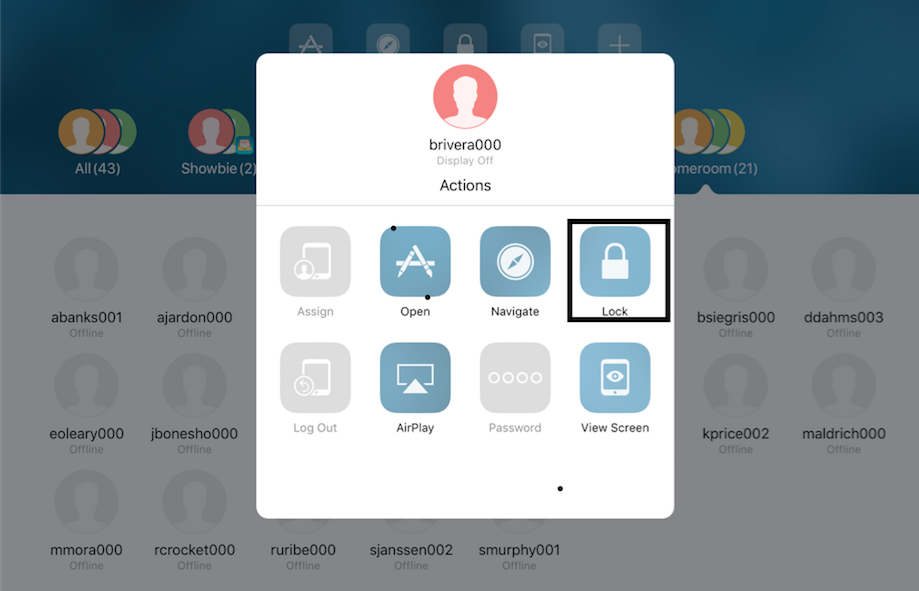
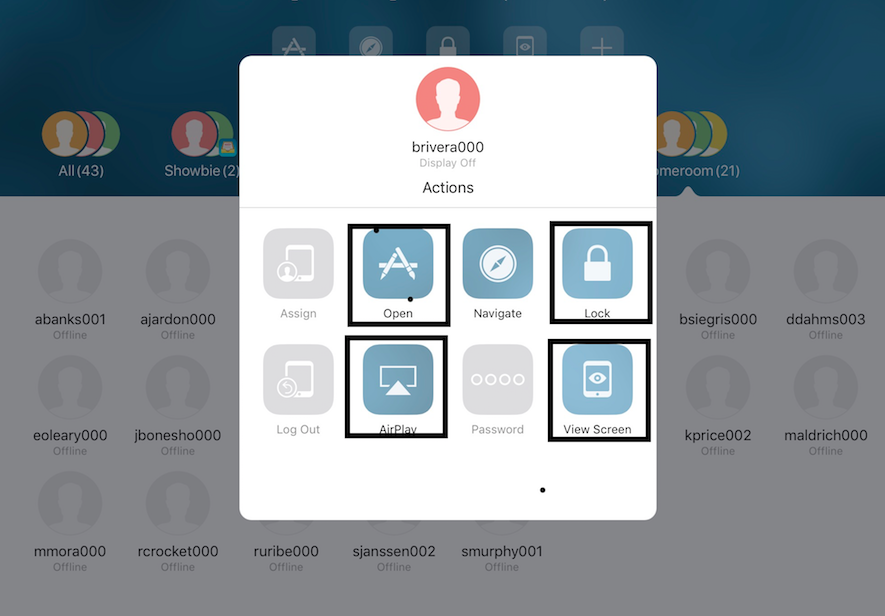
4. I can direct all student iPads to a particular app via Apple Classroom on my iPad-ALL at the same time


5. There is a feature to lock students  into an app once they have been directed there (this is usually needed only for a couple of lovelies-not as a whole class. I want them jumping in and out of apps as needed).


6. It runs through Bluetooth. I believe that this is a great advantage over Casper Focus, which is more “permanent”. Some may argue that running through Bluetooth is a disadvantage because students could easily break the connection with Apple Classroom by restarting their device or by leaving the general vicinity of the classroom., but students are aware that their Bluetooth must always be on and that attempts to break the connection will result in loss of privileges or other logical consequence.

7. One of my favorite features of Apple Classroom is the ability to AirPlay any student iPad to the SMART Board. It can function much like a randomizer to keep students accountable or just for a quicker connection to the board when students are sharing out or if you want to highlight a student strategy. (It is technically AirPlaying to the Apple TV connected to the projector on the SMART Board.)


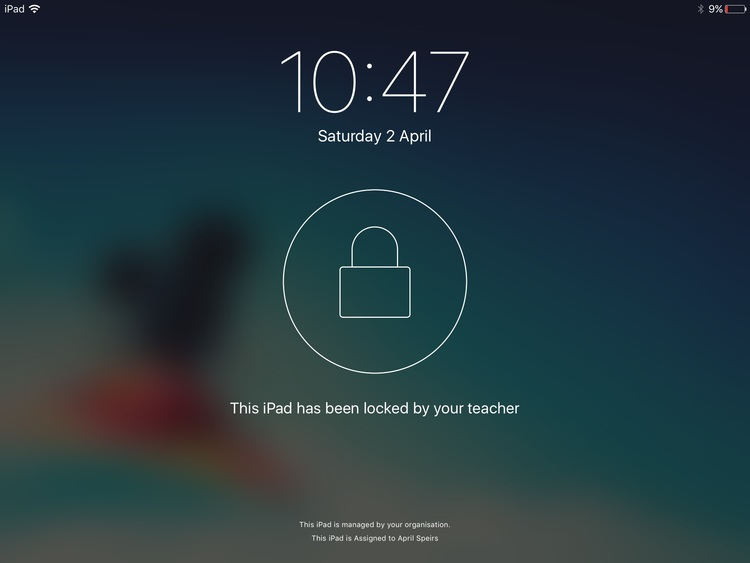
8. Another favorite feature is that I can see all student devices in one clear view. I am able to see what app each student is working in or I can see all screens at once where the small icons display exactly what is on each student screen. If I need to take a closer look at a particular student’s iPad, then it’s a quick touch and I see a larger view of that particular student iPad. There are times when that one student needs a reminder or redirection. Rather than interrupt the small group that I am facilitating at the time, I can quickly redirect by using a couple of features in Apple Classroom. I will on occasion“lock” that student’s  iPad for a brief moment. They get a message on their homes screen that shows “Your iPad has been locked by your teacher”


That action usually elicits a look up and direct eye contact with me. Then I give them the “Let’s  get back to work” look, exchange smiles and then unlock their iPad. This 30 second reminder/redirection is a GREAT way to non-verbally and very quickly get a student back focused with the correct task. I LOVE that I am not interrupting my small group and it gives the student a quick visual reminder.


With the many advantages I recommend that you give it a try-even if you’re feeling a bit skeptical. There are many other little features that help things run smoothly that I am sure you will quickly discover.

ENJOY!